
Restaurant POS software helps restaurants manage orders, payments, menus, kitchen operations, and sales data from one connected system. Instead of handling these tasks through separate tools and manual records, restaurant staff use one platform to coordinate daily service.
The right software makes order entry easier, keeps kitchen teams informed, and gives managers a clearer view of business performance. However, not every restaurant needs the same features. A small cafe has different requirements from a full-service restaurant or a busy pizza shop. Understanding the main software functions helps restaurant owners compare providers and choose a system that fits their operation.
The Main Purpose of Restaurant POS Software
Restaurant POS software acts as the central management platform for sales and service. It connects the activities that take place before, during, and after a customer transaction.
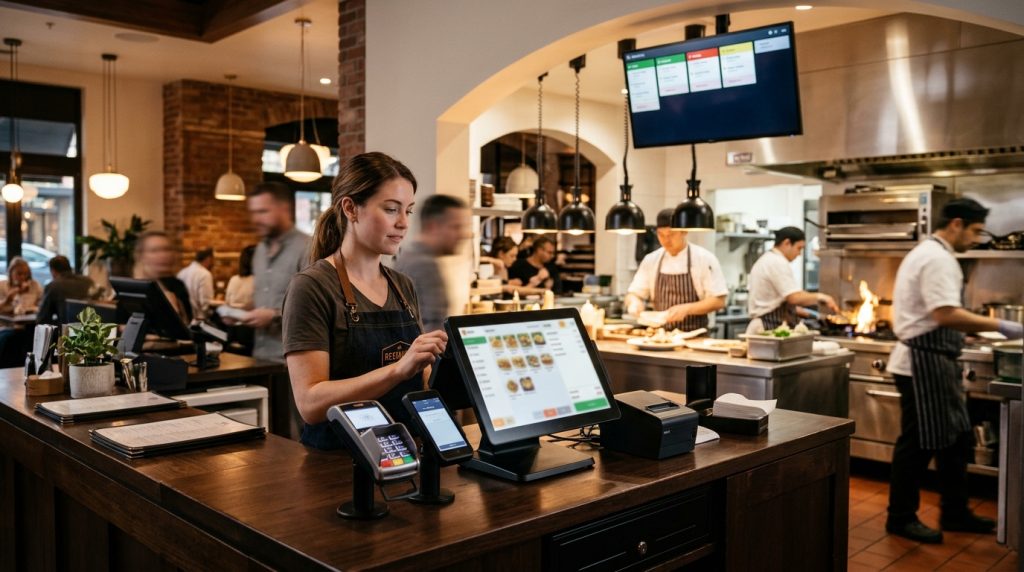
When a cashier enters an order, the software records the selected menu items, modifiers, prices, and special instructions. It then sends the order to the appropriate kitchen printer or display. Once the customer pays, the transaction enters the sales records.
Depending on the system and configuration, the software handles several connected tasks:
- Order management: Records dine-in, takeout, pickup, and delivery orders.
- Menu management: Organizes menu items, prices, categories, modifiers, and promotions.
- Kitchen communication: Sends orders to kitchen printers or kitchen display systems.
- Payment management: Records transactions, tips, discounts, refunds, and payment methods.
- Inventory tracking: Monitors stock levels and product usage through supported inventory tools.
- Employee management: Controls staff access, permissions, and activity.
- Sales reporting: Organizes transaction data into reports for owners and managers.
- Online ordering: Connects digital orders with the restaurant’s in-house workflow through supported integrations.
These functions help restaurants manage daily operations without depending on disconnected records.
How Restaurant POS Software Works During Daily Service
A POS platform follows the restaurant’s order workflow. The exact process depends on whether the business offers counter service, table service, pickup, or delivery.
Order Entry and Customization
Staff enter orders using a touchscreen, handheld device, or terminal. The program includes options for modifiers, combinations, portions, and cooking instructions.
For example, a customer orders a pizza with half pepperoni and half vegetarian. This is entered into the interface as one order, and modifiers are recorded for each half.
Kitchen Order Routing
Orders go to kitchen printers or display screens when staff submit them. The system can identify where each item needs to be prepared.
Kitchen teams can use this information to track order progress and prepare items in the correct order. Routing by station, if supported, reduces confusion when multiple teams handle different items on the same order.
Payment and Transaction Recording
The POS records the customer payment, whether the customer pays by card or cash. It records tips, loyalty points, discounts, and refunds.
For dine-in service, staff create bills for specific tables and can divide them when needed.
Reporting and Business Monitoring
The program stores the completed transaction so that sales reports include the required figures. It can provide up-to-date information on sales, current orders, and completed payments.
Restaurant managers review sales reports to understand which items sell well, when customer demand increases, and how the business performs across different shifts.
Where inventory and employee tools are enabled, managers can review stock activity and staff performance alongside sales data. This gives them more information for purchasing, scheduling, and menu decisions.
Essential Restaurant POS Software Features
The main purpose of restaurant POS software is to handle everyday work in one place. Some features have an effect on service speed, some affect accuracy, and others support reporting. The key features to review are below.
Order Management
Order management controls the creation, modification, and completion of orders. It supports dine-in, takeout, delivery, and pickup orders.
The application should support menu changes, cooking instructions, order priorities, and order history. For full-service restaurants, it should also support splitting a bill and transferring orders between tables.
Look for a fast input sequence that reduces errors and supports fast service. A well-designed ordering screen can save minutes during peak periods.
Menu Management
Menu management controls how dishes, prices, ingredients, promotions, and sold-out items appear on the POS. This helps restaurant owners update menus quickly and keep all ordering displays accurate.
Managers should be able to hide out-of-stock items, update prices, create promotions, and manage limited-time menus.
Some menu tools support item groups such as appetizers, main dishes, and drinks. These features help staff locate information quickly.
Table and Floor Management
Table and floor management helps full-service restaurants connect orders with tables and dining areas. Useful functions include table mapping, open checks, moving orders between tables, and splitting bills. Some systems support additional features such as course management and server assignments.
A takeaway restaurant has little need for advanced floor mapping. A full-service restaurant should treat it as an important buying requirement.
Kitchen Display System Integration
Kitchen display system (KDS) integration sends orders directly to digital kitchen screens instead of printed tickets. Each order appears with item details, modifiers, cooking instructions, and priority.
For restaurants with several preparation stations, the system sends items to the correct screen. For example, drinks go to the bar screen, and food items go to the kitchen screen. This reduces confusion and helps kitchen teams complete orders in sequence.
Payment Processing
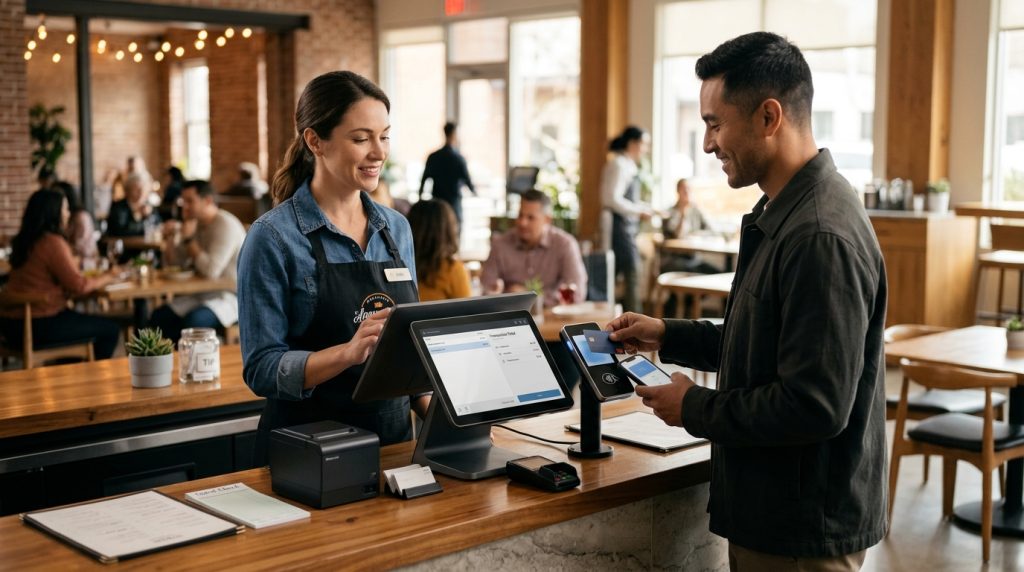
Payment processing covers card payments, contactless payments, mobile wallets, and cash handling. The software records transactions and records tips, discounts, and refunds.
Payment terminals connect to the POS so that staff can take payment at the counter or at the table. Some systems work with a card terminal, payment gateway, or provider-specific payment setup.
Payment processing fees vary by provider and card type. Restaurants should review transaction fees when evaluating a system.
Inventory Management
Inventory tools in the POS track stock levels, ingredient use, and replenishment needs. Depending on the system, they may track finished products or ingredient-level items. More advanced configurations reach ingredient-level tracking and recipe-based deductions.
Restaurants that use raw ingredients should compare inventory features carefully. Without ingredient-level monitoring, staff may rely on manual counts and purchase records.
Employee Management and Permissions
Employee management controls employee access to POS operations and functions. Some systems provide staff management features, such as role-based access, refunds approval, and clock-in support.
Restaurants should check the permission settings before deployment. Unauthorized actions can lead to errors in sales recording.
Sales Reports and Analytics
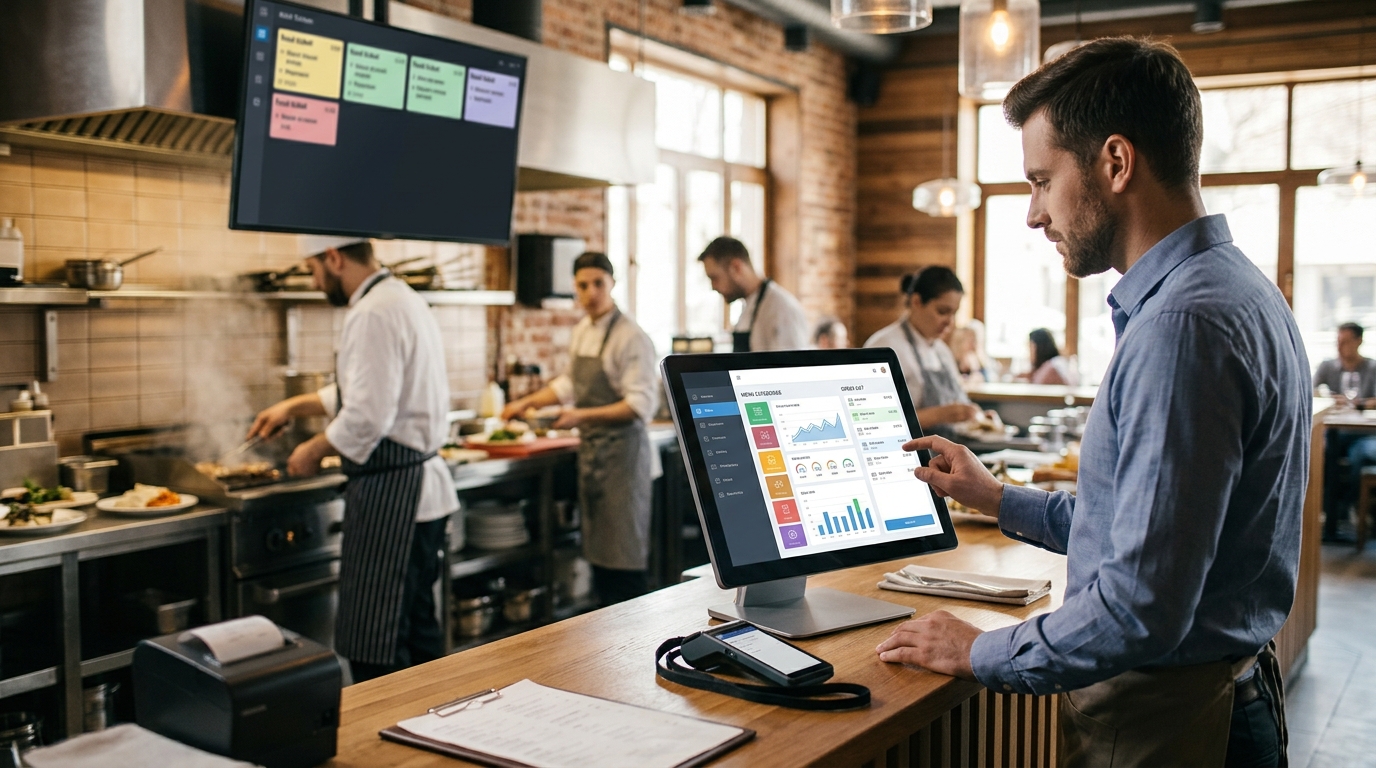
Sales reports give managers information about the business at different levels of detail. The reports can show:
- Daily sales by category or item
- Sales by product, category, time period, or employee
- Revenue by payment method
- Peak hours and slow periods
- Staff performance
- Order volumes by service type
Managers use data to manage inventory, staffing, menu choices, promotions, and business performance. Reviewing reports weekly helps identify areas requiring attention.
Online Ordering and Delivery Integration
Some POS systems provide an option for customers to order through the restaurant’s website or application. Depending on the system, orders that arrive online may enter the POS automatically after being placed.
For restaurants offering delivery, the POS may connect with delivery platforms through provider-supported integrations. This reduces the risk of duplicate orders and provides a single point of order management.
Cloud-Based vs Locally Installed POS Software
Restaurant owners can choose between cloud-based and locally installed implementations. The platform affects where business information is stored and how employees interact with it.
Cloud-Based POS Software
- Access from more places: Information is stored through provider-supported online services and is available from supported devices or addresses.
- Automatic updates: Software updates are provided automatically through the provider’s service.
- Subscription costs: Access is usually billed as a monthly or annual subscription or per terminal.
- Internet dependence: The business needs internet connectivity to access cloud-based dashboards and services. Offline functions should be confirmed with the provider.
Locally Installed POS Software
- Stored on site: Information is stored on the restaurant’s local server or terminal.
- Offline use: The software continues to run after internet outages if supported by the local configuration.
- Manual updates: The restaurant must apply system updates.
- Licence costs: Chargeable as a one-time payment or licence fee for the software.
Choosing Between Cloud-Based and Locally Installed Software
The choice often depends on connectivity and business priorities. Restaurants with stable internet may benefit from cloud-based software. Establishments that prefer local data storage may value locally installed software.
When the system includes internet-connected features such as cloud access and online ordering, you should confirm offline mode behavior, data service arrangements, and the extent of the support package.
Choosing Restaurant POS Software by Business Type
Comparing software features by business type helps owners focus on relevant features.
| Restaurant type | Required features | Reason |
|---|---|---|
| Quick-service restaurant | Fast order entry, online ordering, simple menu management | Service speed matters |
| Full-service restaurant | Table management, bill splitting, kitchen display, employee access controls | Complex service and table flow |
| Cafe or bakery | Menu management, payment processing, reporting | Simple ordering with fewer service steps |
| Pizza and delivery | Delivery management, phone and online orders, driver tracking, where supported | High delivery volume |
| Food truck | Mobile card acceptance, compact POS, reporting | Limited space and mobile operations |
How to Choose Restaurant POS Software
When businesses search for POS software, they often start with a provider list. A structured review process helps compare options and avoid missing important features. Choosing the software requires clear steps:
1. Define Daily Service Requirements
Identify the way the restaurant serves customers, including counter service, table service, takeout, delivery, or a mix of channels.
The order flow varies by service model, and the software should support the restaurant’s actual workflow rather than a generic workflow.
2. List Your Must-Have Features
Select software based on the restaurant’s daily requirements. A quick-service outlet needs fast menu editing and simple order entry.
Keep optional features separate. Loyalty programs, advanced analytics, and additional integrations deserve consideration when they support a clear business goal.
3. Check Hardware Compatibility
Restaurant POS software needs compatible devices to operate. Confirm that the platform works with your preferred terminals, handheld devices, kitchen screens, payment terminals, and printers.
Ask whether you must purchase equipment from the provider or whether existing hardware is supported. Compatibility should be confirmed before purchasing new devices.
4. Review Payment Processing Terms
Payment processing affects every card transaction. Compare the percentage rate, per-transaction charges, monthly fees, contract terms, and any additional costs.
Ask how the provider handles refunds, chargebacks, tips, and online payments. Request a written explanation of the payment agreement before signing.
5. Evaluate Reporting and Integrations
Check whether the software provides the reports managers need. Review its connections with online ordering, accounting, payroll, loyalty, and delivery tools.
Do not assume an integration is included because a provider lists it on a feature page. Confirm compatibility, availability, and any additional charges.
6. Test the Interface
Ask for a product demonstration or trial. Test common tasks such as entering an order, changing a modifier, splitting a bill, and processing a refund.
A system that looks impressive during a sales presentation should still be easy for employees to use during a busy shift.
7. Review Setup and Customer Support
Ask who handles menu configuration, hardware installation, data migration, and employee training. Find out how support works after the system goes live.
Common Mistakes to Avoid in Restaurant POS Software
Some restaurants choose a system quickly and later discover missing features or unexpected costs. The following mistakes are common:
- Selecting the software price without considering processing fees and hardware costs
- Selecting software that does not support online orders or delivery integration, if needed
- Ignoring offline mode behaviour and backup options
- Selecting software without KDS integration
- Using a single login for all staff instead of individual permissions
- Ignoring the time needed for menu setup, training, and staff adjustment
- Choosing software without checking support availability and cost
Restaurant POS Software from USPayrun
USPayrun offers restaurant POS software and payment processing hardware for restaurants that need reliable transaction management. The provider also offers USPayrun payment gateway solutions.
Restaurant owners can check USPayrun’s product options or ask about getting setup support. The provider lists USPayrun’s Wing 15.6-inch dual-touch POS at $799 and its Wing 15.6-inch touch POS at $699. It also sells a countertop payment terminal for accepting customer payments.
Visit USPayrun to see the restaurant POS software, restaurant hardware, and USPayrun payment gateway options available for restaurants.
To learn more about USPayrun’s restaurant POS options, or to get started, call (860) 844-3611.
The right restaurant POS software streamlines order entry, kitchen communication, payments, inventory, and reporting. A restaurant should choose the platform that supports its services and gives managers clear sales information. When the business grows, the software setup should be reviewed and updated.
Frequently Asked Questions
1. What does restaurant POS software do?
Restaurant POS software manages orders, payments, menus, kitchen communication, inventory tracking, and reporting through one platform.
2. How do I choose restaurant POS software?
Start by defining the daily service model, then compare features, payment processing terms, hardware compatibility, reporting, and support. Test the demo before purchase.
3. Is cloud-based POS software right for restaurants?
Cloud-based software may suit restaurants that need access from several locations to see reports. Verify that offline mode carries the restaurant through internet outages.
4. Can restaurant POS software handle online orders?
Some platforms support online ordering and delivery tools. During live orders, they send the order to the POS so staff do not have to enter it manually.
5. What hardware works with restaurant POS software?
Common items are touchscreens, card terminals, receipt printers, kitchen displays, handheld devices, and cash drawers. Compatibility depends on the provider and system version.